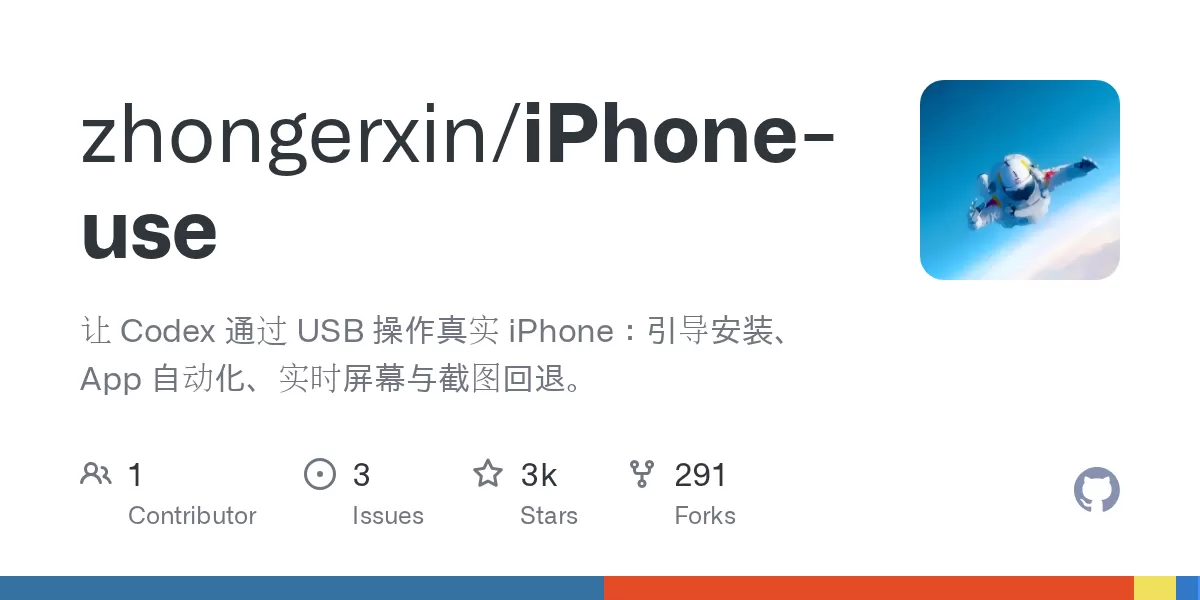
A new open-source project on GitHub, called iPhone Use, shows how an AI coding agent can work with a physical iPhone rather than a simulator. According to the project's repository page, the tool allows Codex, the coding agent developed by OpenAI, to operate a real iPhone connected over USB. Users describe a task in plain language, and Codex can open apps, read the screen, tap, scroll, type text and organise lists, while the phone's display appears in a sidebar. The project is released under the MIT License.
Why phone automation is harder than it looks
Much of today's software automation runs in web browsers or on servers, where developers can call interfaces directly. Mobile apps are different. Many of them offer no open programming interface, so software that wants to press buttons or read text has to work through the same screens a person sees.
Tools built for this job usually rely on a test framework. WebDriverAgent, known as WDA, is one such framework. It is maintained within the Appium ecosystem and runs as a service on the phone itself, executing commands sent from a computer. iPhone Use builds on this approach, adding a layer that lets an AI assistant issue those commands in ordinary language.
How the system is put together
The repository describes three main parts: a local MCP service written in Python, a set of installation and usage skills for Codex, and a live screen widget. The MCP service talks to WDA through the computer's loopback interface, so operating data and signed builds remain on the user's machine. The project also relies on the appium-ios-device library for USB communication, port forwarding and screen streaming.
The developer notes that the tool favours reusing existing connections and builds. When a control cannot be located through the normal element tree, the model is guided to look at a screenshot and try a coordinate-based tap. The repository says these steps reduce repeated requests and back-and-forth between the model and the device, although it adds that total task speed still depends on the app, the USB and WDA status, and the model's response time.
Key capabilities
- Opening apps, reading pages, tapping, scrolling and entering text
- Batch actions and scroll-to-find routines that cut down on tool calls
- Screenshot fallback when an element cannot be found
- A live preview with refresh, home screen and screenshot buttons
- Asynchronous installation jobs that can be queried by ID
Setup requires an Apple developer account
Installation is not a one-click process. According to the repository, users need a Mac with Xcode that supports the iOS version on their phone. The project does not require a jailbreak and does not need a separate Appium Server. However, the WDA runner must be signed with the user's own Apple account and installed on the iPhone before the tool can work.
The setup flow pins WDA to a tested commit, version 16.14.0, and the skill guides Codex through diagnosis, device discovery, signing configuration, building and launching. Some steps remain manual. Apple account sign-in, device trust, developer mode and unlocking the phone must be completed by the user in the system interface.
Signing and first run
The repository's instructions describe connecting the iPhone by USB, trusting the Mac, enabling developer mode and configuring an Apple account in Xcode. The user then opens the WebDriverAgent project, selects the WebDriverAgentRunner scheme and sets a valid team and bundle identifier. Running the test action installs and launches the runner, which must remain active for the service to function. Once the service is running, the tool checks readiness before any phone task begins.
Safety design and known limits
The project draws a clear line between entering text and submitting it. By default, the tools do not submit typed input, and the model is expected to check key details such as the page, the recipient, quantities and the final result before confirming an action. Passwords, verification codes and Face ID prompts are handed to the user to complete.
The repository also describes how the system handles failure. Multiple processes share an operation lock. If an action times out or the connection drops, the action may be marked as uncertain, prompting the model to read the actual state of the screen rather than replay a tap, text entry or submission blindly. This matters because a repeated click on a payment or send button could cause real harm.
Privacy and analytics
By default, the plugin sends anonymous usage statistics to a separate PostHog project. The data covers startup events, tool calls, connection status, timing and error categories. It uses a random installation identifier and, according to the repository, does not upload phone screens, typed content or device identifiers. Users can opt out by setting IPHONE_USE_ANALYTICS=0 or DO_NOT_TRACK=1 and restarting the MCP service.
What comes next
The project is still early, and the repository does not publish independent benchmarks. Its documentation says engineering regression tests and on-device acceptance records are kept in local development materials. Readers interested in mobile automation should note that the tool depends on a developer-signed runner, a working USB connection and a model that interprets screenshots accurately. If those conditions hold, iPhone Use offers a concrete example of how AI agents might handle everyday tasks on a personal phone, with the user retaining control over sign-in and final decisions.
Related: Reduce Claude Code Token Costs With optimAIzr CLI · Codex on Crack Lets You Mix Claude and DeepSeek Models in Codex

Comments (0)